What's New in Spacely AI: New Tools, Smarter Workflows for Architects, Designers, and Realtors
Every feature in this update exists for a reason — each one is built by listening to the professionals who actually use them. This latest Spacely AI update is our direct answer to the feedback, wishlist requests, and workflow challenges shared by our community.
You bring the vision; we build the tools to make it happen. From entirely new features to fine-tuned adjustments, every single update in this release is designed to give you the highest quality output with the least amount of friction.
🎯 Here's everything we updated in April 2026.
- New Features: Landscape Render, Image to Lineart, Pause & Unpause Subscription
- Updated Workflow: SketchUp Extension, Canvas and Project Improvement, Focus and Infinite Canvas Mode
- Updated Render Model: Enhance Quality 4K, Realistic Render, Point & Edit, Empty the Room
💡 New Features
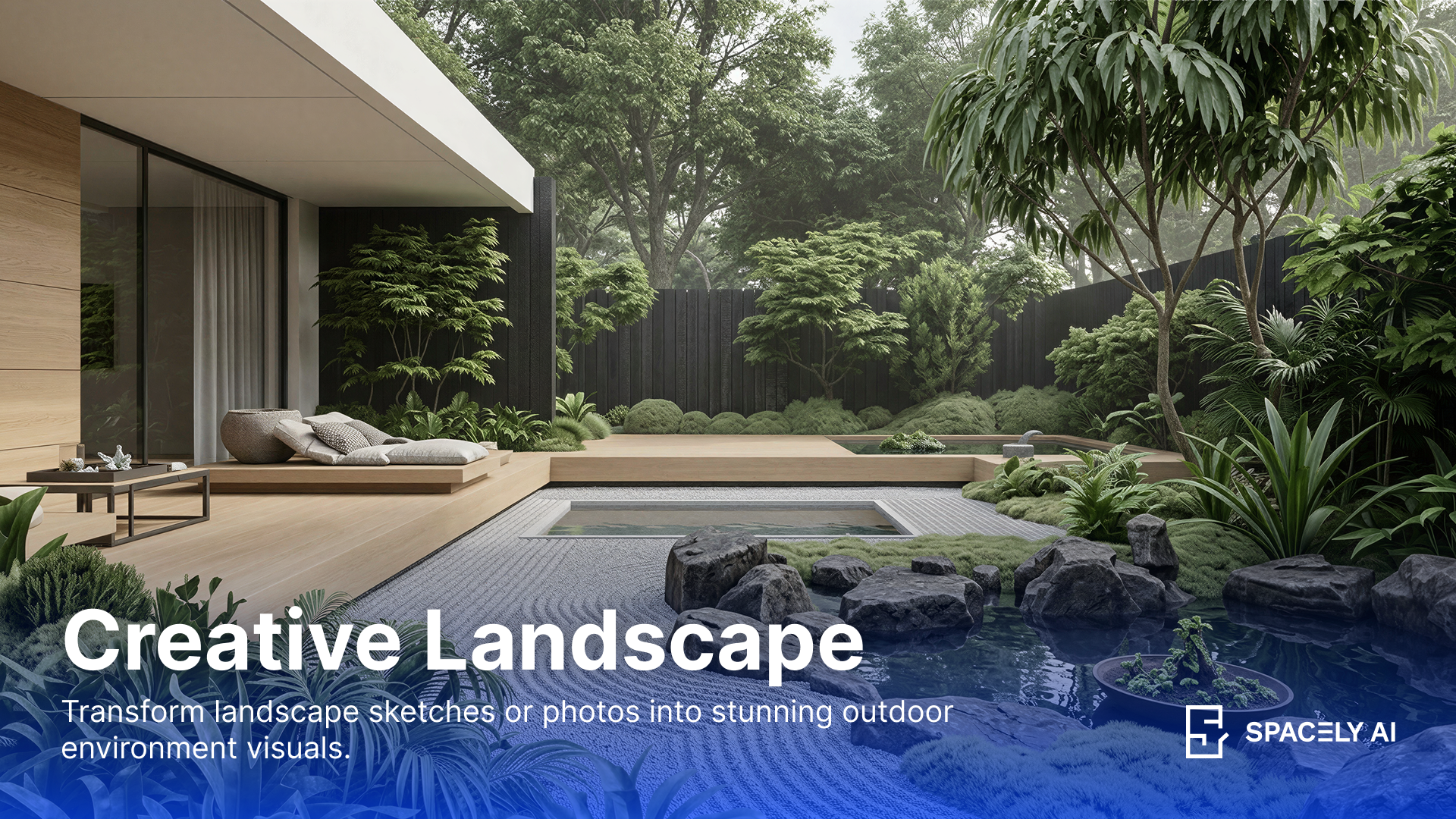
1. Landscape Render — Outdoor visualization
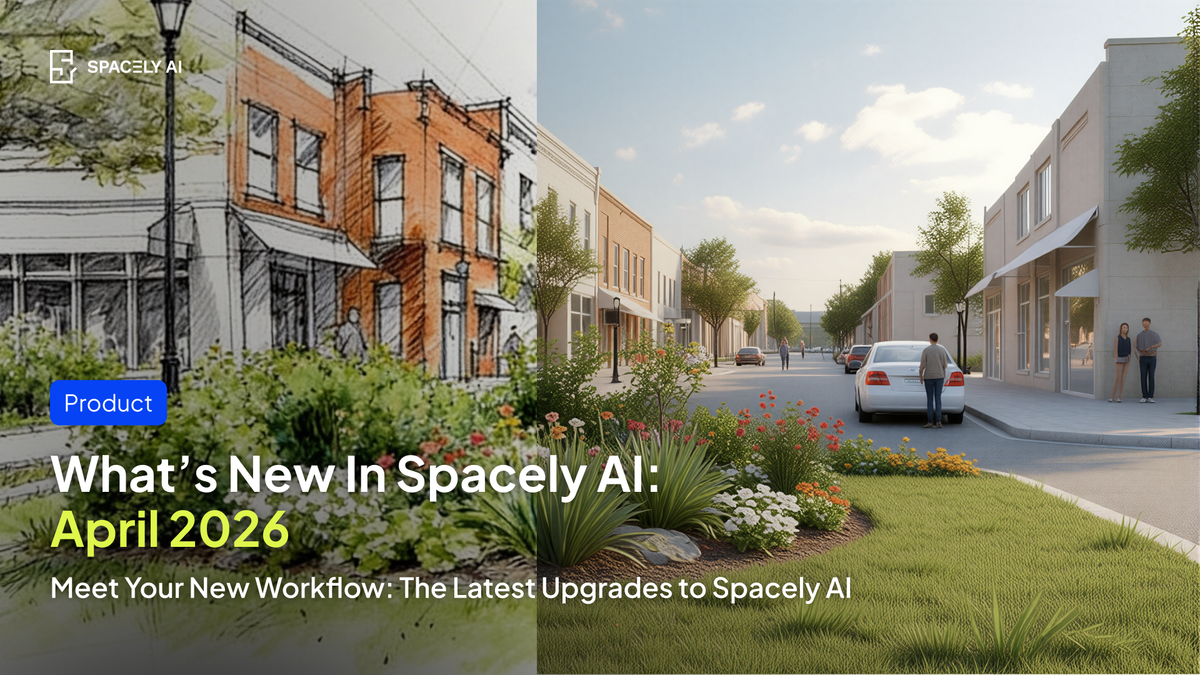
Landscape Render brings AI-powered visualization to the space around the building — gardens, courtyards, rooftops, terraces, poolscapes, streetfront landscaping, and entire residential or commercial exteriors with their surrounding green space.
It handles the elements that make exterior design uniquely challenging: natural plantation rendered at accurate scale, outdoor lighting across different times of day, hardscape materials (stone, pavers, wood decking) with realistic weathering, and the spatial relationship between built structures and planted areas.
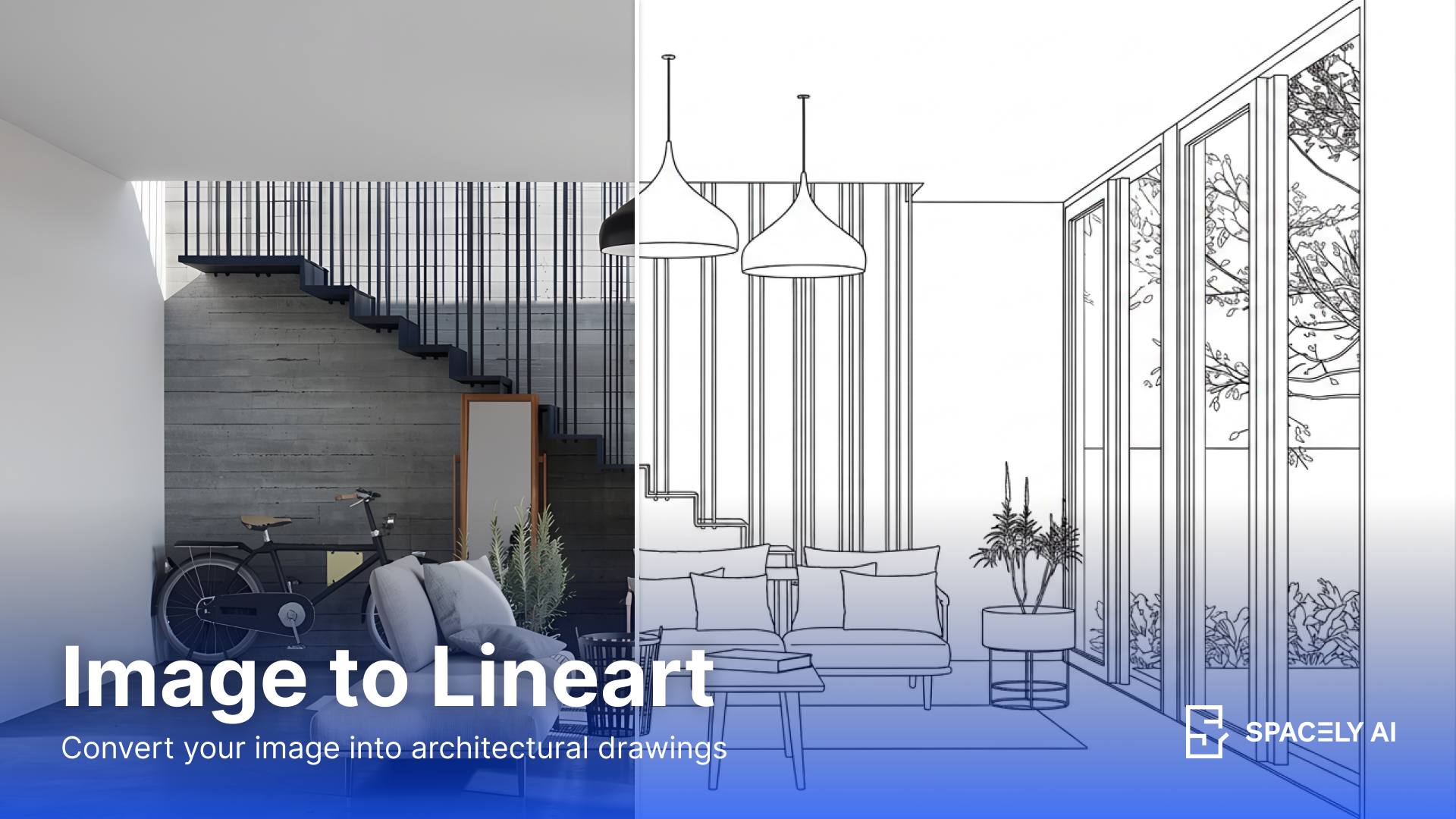
2. Image to Drawing — Convert any photograph to a vector line drawing
Image to Drawing converts any photograph — a room, a building, a streetscape — into a clean line drawing. The output is exportable as a vector file, which means it scales infinitely without losing quality and integrates directly into AutoCAD, Illustrator, Figma, or any vector-based design workflow.
Architects use line drawings to communicate spatial intent before materials enter the conversation. Interior designers use them as overlays in client presentations to show layout logic separate from style. Educators use them to teach spatial relationships.
3. Pause and Unpause — Lock your subscription, hold your credits
Sometimes you need to step away from your subscription without losing your monthly credit allowance or your locked-in pricing. Pause and Unpause lets plan subscribers temporarily suspend their subscription — keeping their plan price and credit benefits intact for when they return.
What Pause and Unpause does:
→ Your monthly credits are held in your account.
→ Your current plan price is locked, even if pricing changes during your pause.
Remarks:
→ Maximum pause length: 3 months. After 3 months, your subscription auto-renews automatically.
→ Cancellation vs pause: If you cancel instead of pause, your credits reset to zero. Pause preserves them. Cancel removes them.
→ Self-service reactivation: You can unpause anytime within the 3-month window directly from your account settings.
⚙️ Updated Features for Your Workflow
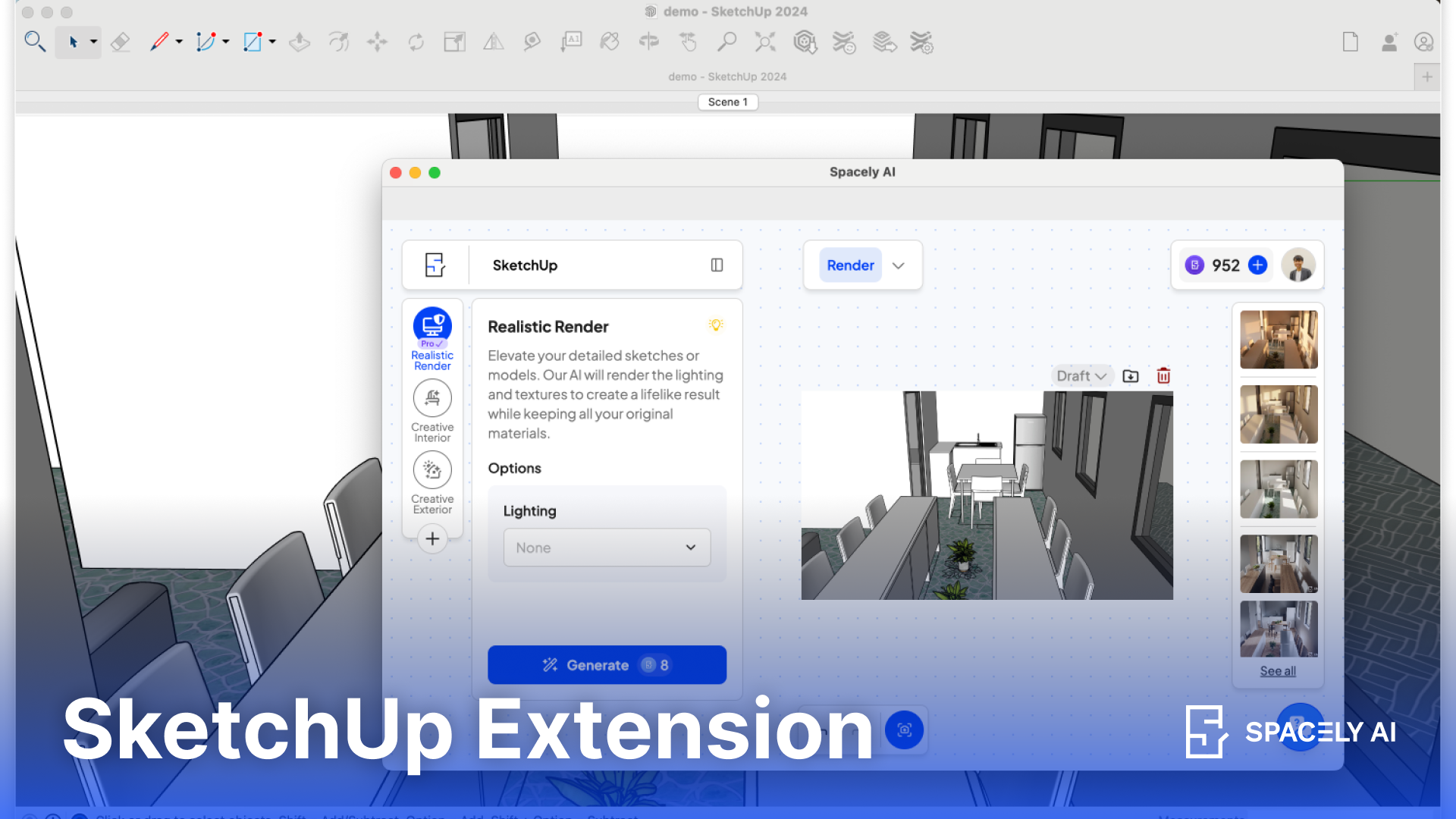
4. SketchUp Extension Update
The SketchUp Extension has been updated for faster model synchronization, improved connection stability during long sessions, and better handling of complex geometry. Render previews now load faster in the Spacely AI panel within SketchUp, and the OTP sign-in process (introduced in Q1 2026) is now more reliable across different email providers.
5. Canvas and Project Improvements
- Copy and paste (Ctrl+C → Ctrl+V): You can now copy elements, renders, and text annotations on your canvas and paste them — within across different project canvases or from other platform. Duplicate a render to create a variation. Copy a reference image from one project to another. The standard keyboard shortcut works the way you expect.
- Duplicate and Move Canvas Between Projects: You can now duplicate an entire canvas — with all its renders, edits, and layout — and move it to a different Project Folder. The original stays intact. The duplicate becomes a fully independent copy in its new location.
- Notification sound: When a render finishes generating — whether you're on the canvas tab or working in another application — you'll hear a subtle notification sound. No more switching back to check if it's done. The sound is adjustable in Settings and can be muted.
6. Focus Mode and Infinite Model
Focus Mode: Click any render on your canvas and activate Focus Mode. Your selected render fills the view with editing tools immediately accessible. When you're done, exit Focus Mode and the full canvas returns. It's a temporary zoom-in — your context is preserved, you just remove the visual noise of everything else.
Infinite Mode (expanded): The canvas boundary has been removed entirely. Scroll in any direction indefinitely. Place renders, references, and annotations as far apart as your project requires. For multi-room properties or portfolios with dozens of projects, the canvas no longer runs out of space.
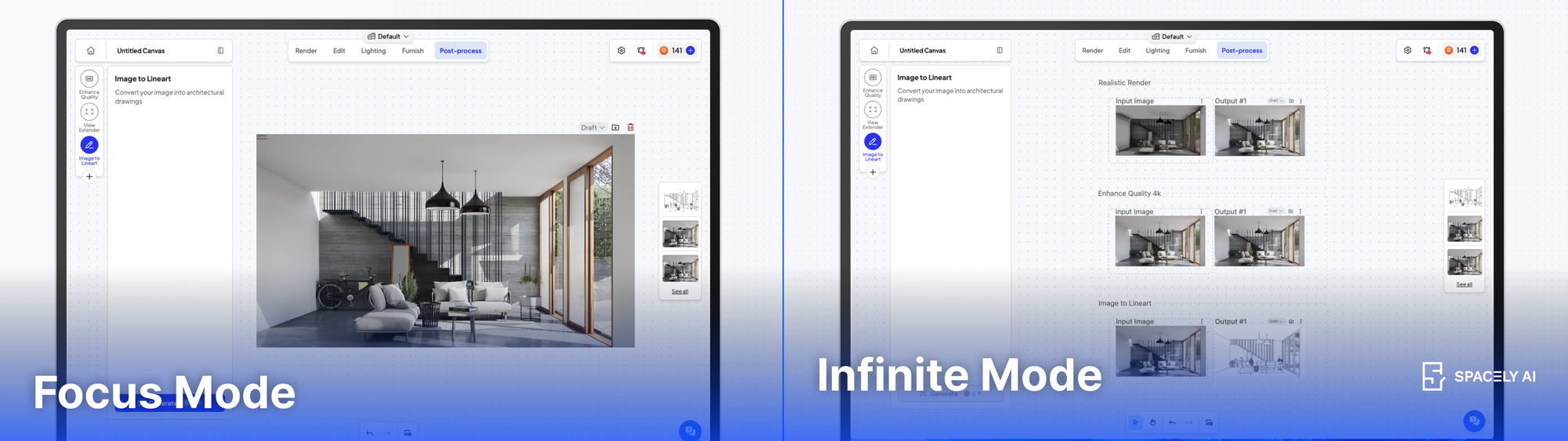
Switch between them anytime — this is about giving you control over your view, not forcing a single way of working.
🌟 Updated Render Model
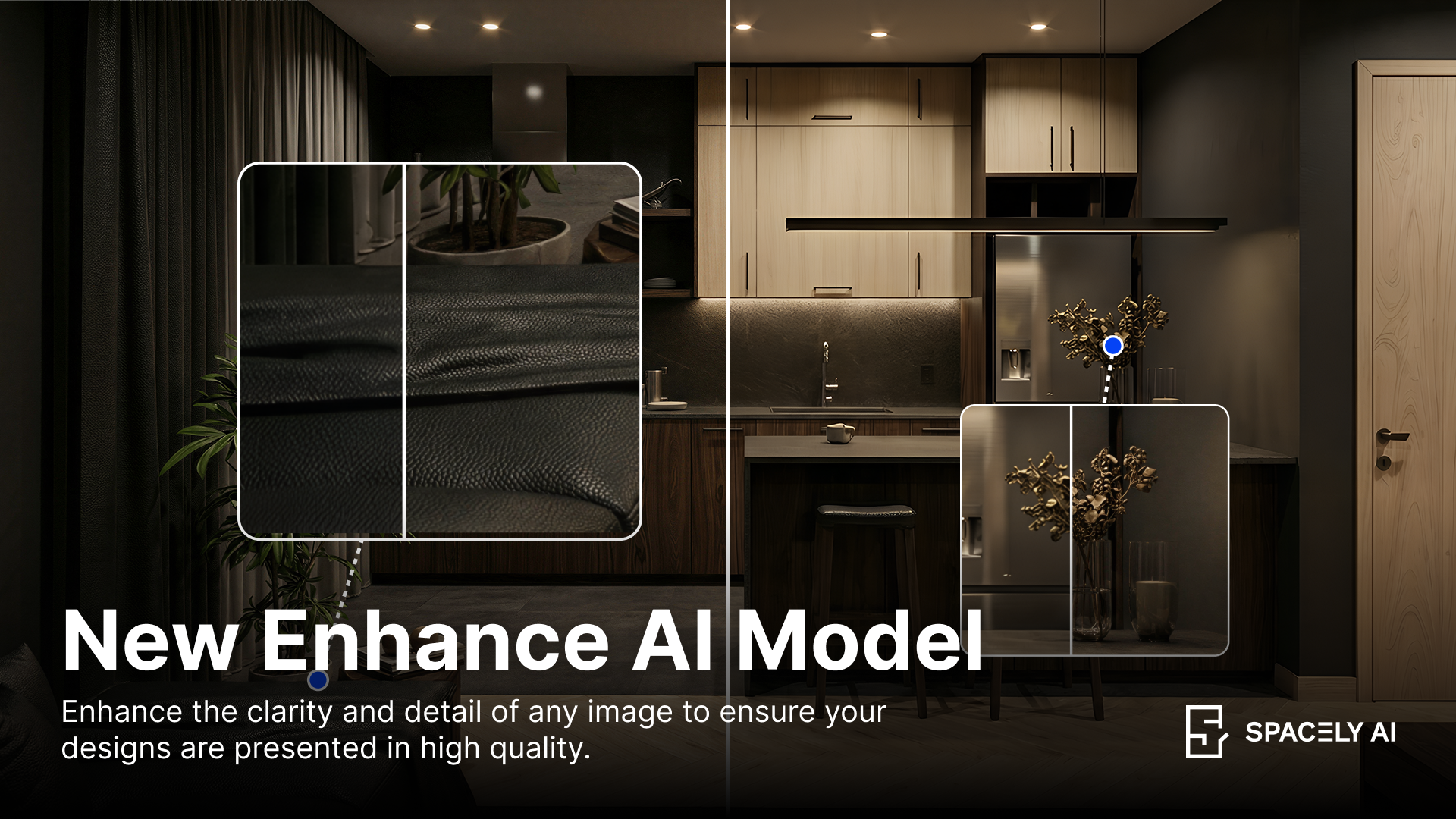
7. Pro Feature: Upscale 4K
What you told us: "The 4K upscale sometimes softens textures instead of sharpening them. And complex renders take too long to process."
The Enhance Quality 4K engine has been rebuilt. The new model produces sharper material textures (especially fabric, wood grain, and stone), more accurate edge definition, and faster processing across all render types.
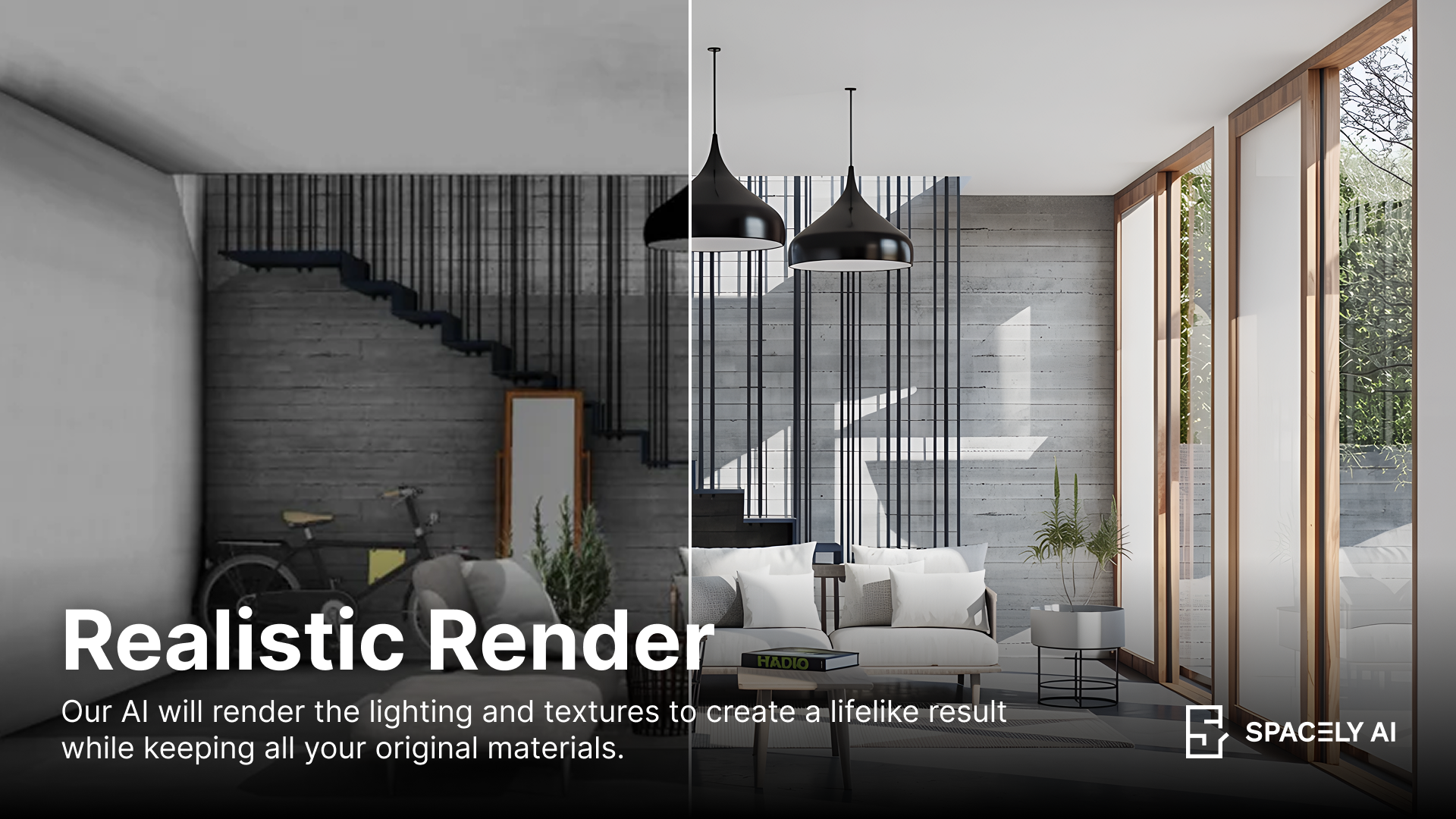
8. Pro Feature: Realistic Render
What you told us: "The materials are good but not great. Sometimes it appears slightly plastic and material pattern are too uniform.”
The Realistic Render engine received a targeted upgrade focused on the material categories that matter most for professional presentation. Fabric now shows realistic draping, thread texture, and light absorption. Glass surfaces reflect and refract based on angle and light source position. Wood grain patterns vary naturally across pieces rather than tiling.
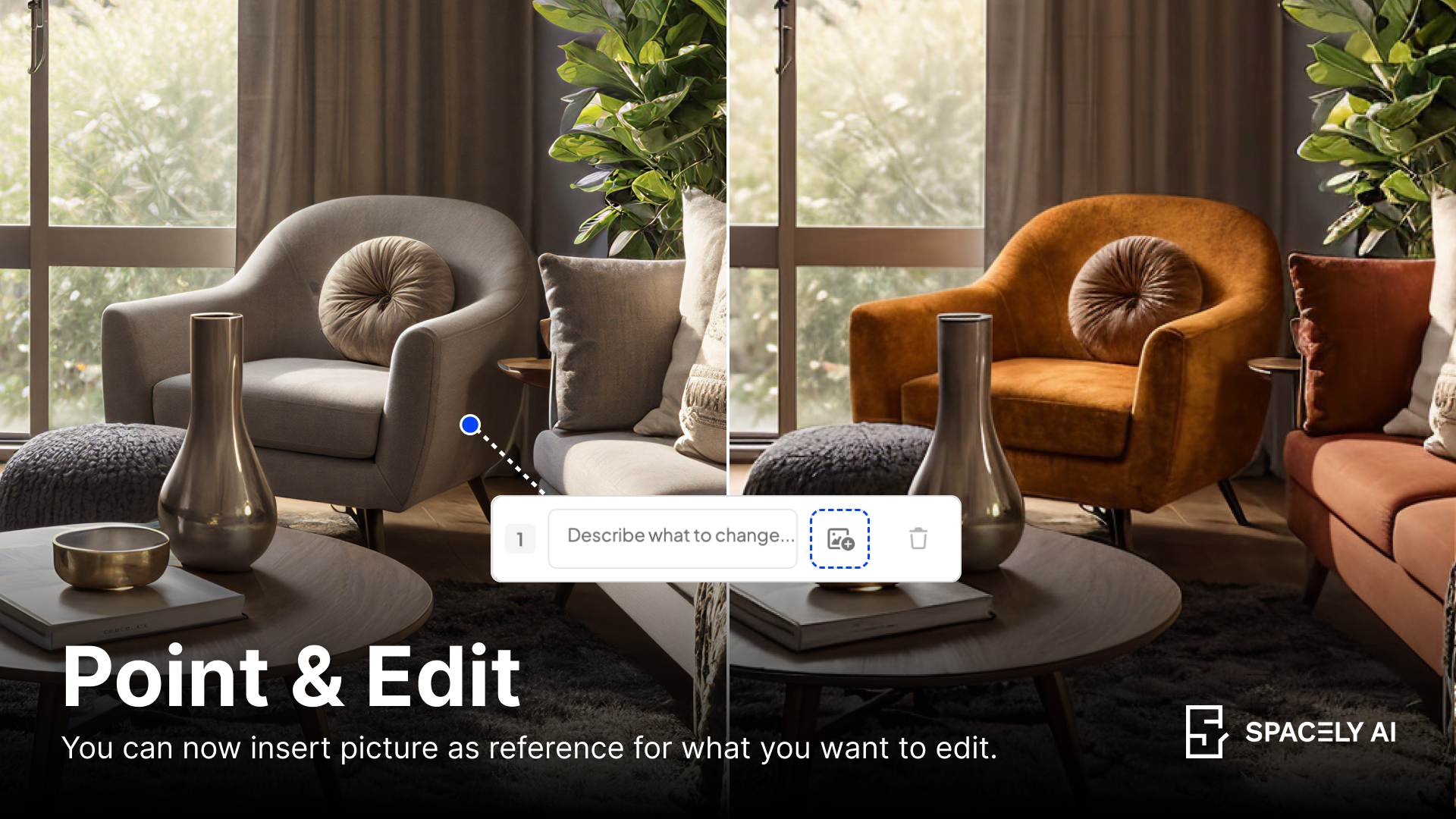
9. Point & Edit with Image
What you told us: "I know what I want the sofa to look like. I just can't describe it in words."
Point & Edit now accepts image references in addition to text descriptions. Click on any element in your render, then upload a reference photo of what you want it to become — a specific chair, a light fixture, a material sample. The AI replaces the selected element with one that matches the reference, while keeping the rest of the room intact.
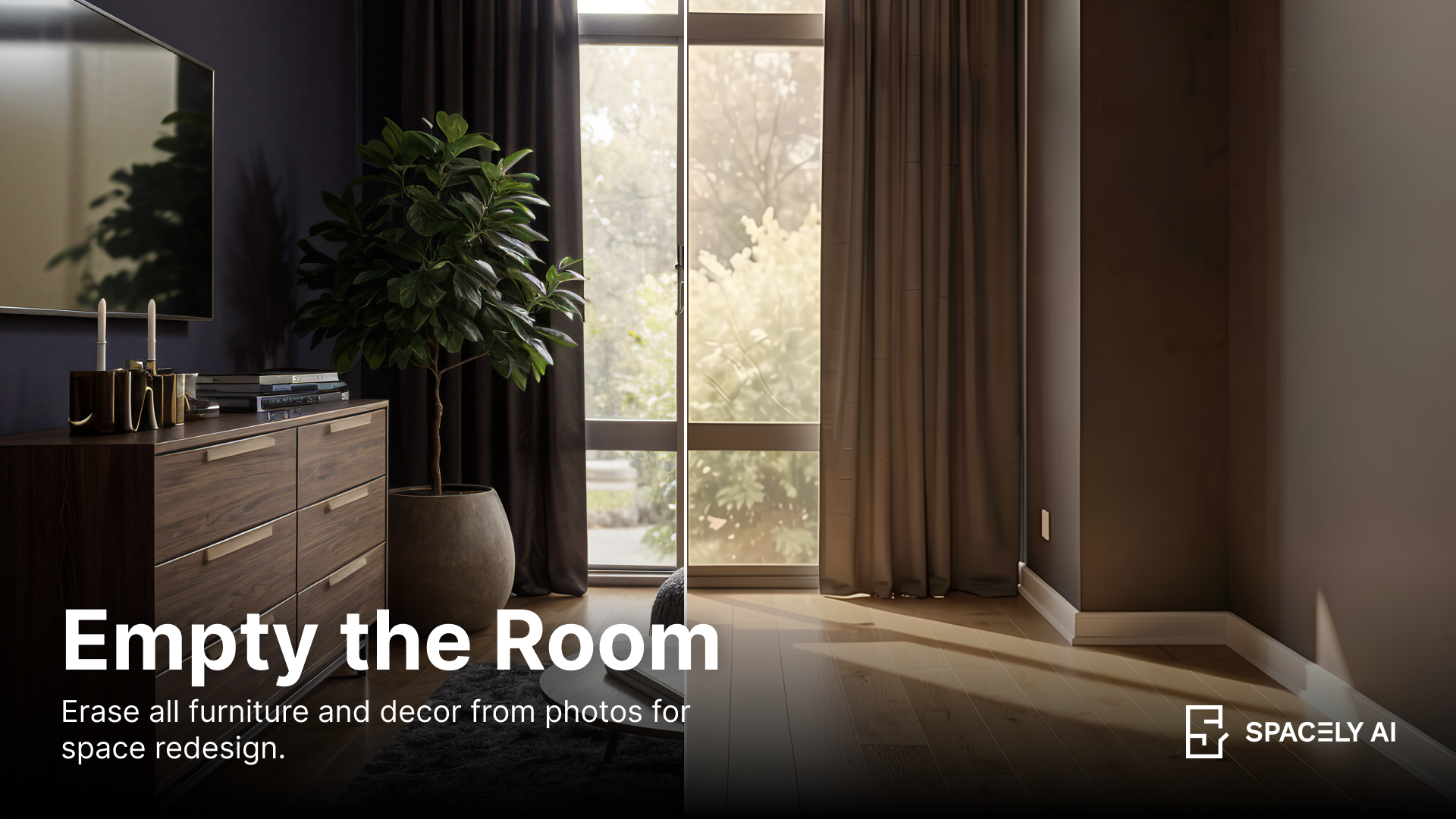
10. Empty the Room
What you told us: "When I empty a room, there are some items left behind."
Empty the Room now uses an improved surface reconstruction model that can remove more furniture and item. After removing furniture and objects, the underlying floor, walls, and ceiling are reconstructed with consistent textures, accurate lighting, and no residual shadows from removed items.
Let’s Get You Set Up
All features are available now:
- Starter Plan — Spacely AI Starter Tools including Creative Landscape, Image to Lineart, Point & Edit, and Empty the Room
- Studio Plan — Full Workflow access, Enhance Quality (4K), Point & Edit Pro, Realistic Render
- Business Plan — Everything above, plus API access and priority processing
New to Spacely AI? Create a free account with free credits and start rendering today.
Have feedback on any of these updates? We'd love to hear from you: support@spacely.ai