How to Start Your First Project in Spacely AI — 2026 Edition
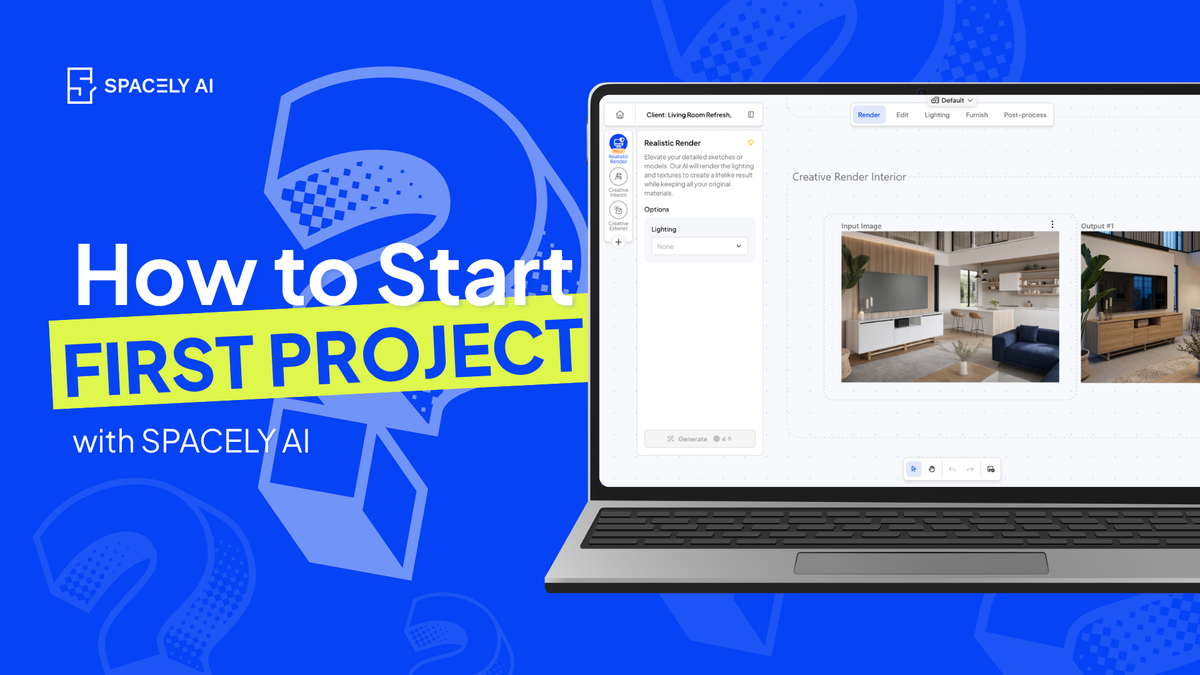
The Spacely AI tutorial has been updated for the 2026 platform — now featuring Infinite Canvas, guided Workflows, and Project Folders. Learn how to create a canvas, choose a workflow, render a concept, edit details, enhance to 4K, and save to your project folder — all in under a minute.
Whether you're an interior designer exploring a client concept, an architect testing a spatial direction, or a realtor staging a listing — this is the starting point.
The complete 2026 workflow:
Canvas → Workflow → Render → Edit → Post-Process → Folder
Step 1: Create your canvas
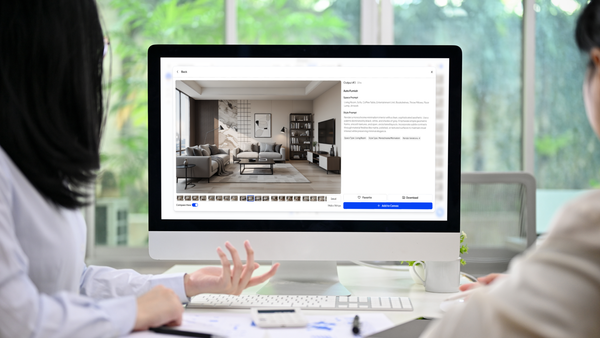
Every project starts with a canvas — a flexible workspace where everything you create lives. It's a visual surface where you can arrange renders side by side, compare options, and see the full project at a glance.
Step 2: Choose a workflow
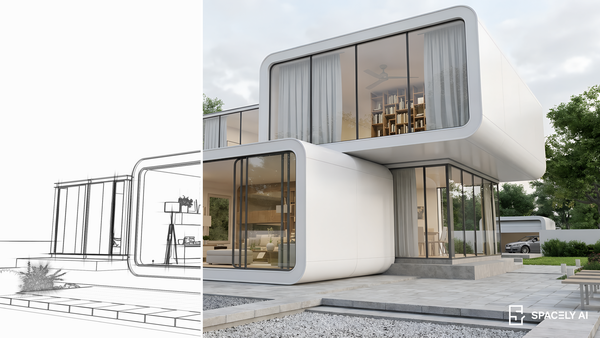
Select a guided template: Interior Redesign, Virtual Staging, Sketch to Render, and more. The workflow organizes 12+ tools into clear stages and surfaces the right tools at each step.
Step 3: Render your concept
Upload a room photo. Choose a style or describe what you want. Generate. Your first concept appears on your canvas in under 60 seconds. The render lands on your Infinite Canvas instead of a single-image view. Compare at a glance.
Step 4: Edit the details
The workflow advances to the Edit stage. Use Point & Edit to change a single element — the sofa, the wall color, the lighting fixture — without regenerating the rest of the room.
New tools in this stage include Lighting Transfer (apply a mood from any reference image) and Adjust Lighting (fine-tune warmth, brightness, and time of day on your existing render).
Step 5: Post-process and download
Enhance to 4K resolution and download for presentations, print, or portfolio. The quality comparison slider shows the difference — sharper materials, refined lighting, crisper edges.
Step 6: Exit and save to your folder
You can exit the workflow at any point — your progress saves automatically. When you leave the canvas, everything you created is organized in your Project Folder.
Get started
→ Watch the full tutorial on YouTube
FAQ
Q: How many credits does one render cost? A: Most renders use 2-8 credits depending on the tool and resolution. Your 30 free credits are enough for up to 4-6 complete renders.
Q: Can I use Spacely AI on mobile? A: You can view your projects and renders on mobile. To create and generate, use Spacely AI on desktop for the full experience.
Q: Do I need design experience to use Spacely AI? A: No. The workflow templates guide you through each step. Upload a photo, pick a style, and the AI handles the rendering. Editing tools like Point & Edit use plain language descriptions — no technical skills required.
Q: What happens when my free credits run out? A: Your projects, renders, and workspace are saved. You can view everything in your account. To generate new renders, choose a plan starting at $15/month (Starter) or $45/month (Studio with 4K downloads and priority queue).
Have feedback? We'd love to hear from you. Reach out to support@spacely.ai